Bring up your recent work
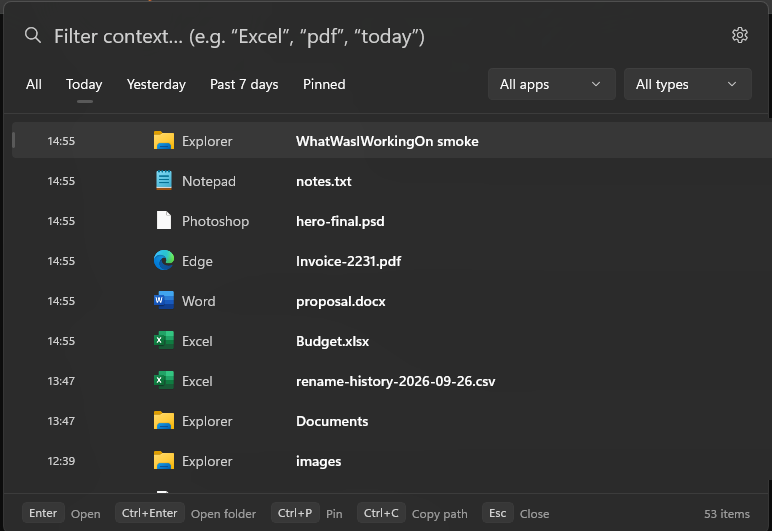
Press Alt + Space for a quick overlay. Search a word, extension, application, or folder.
01 / QUICK SEARCH What Was I
A SMALL SHORTCUT BACK TO YOUR WORK
When you’ve moved on to the next task, remember the project—not the filename. See recent files, folders, and apps together, then open what you need.
One placeRecent items across supported sources
Quick returnOpen the file or its location
On-devicePrivate encrypted local history
LESS HUNTING, MORE DOING
Use the clue you still have—its name, app, type, or when you last opened it.
Press Alt + Space for a quick overlay. Search a word, extension, application, or folder.
01 / QUICK SEARCHOpen a result in its usual app, show it in File Explorer, pin it, or copy its path.
02 / RETURN TO WORKUse the full history window to review items by time, app, file category, and search term.
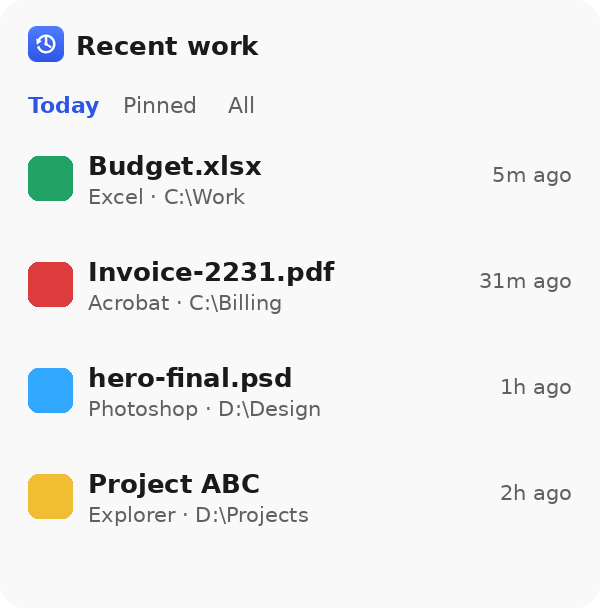
03 / REVIEW HISTORYAdd the optional Recent work widget to see a short list without opening the full app.
04 / OPTIONAL WIDGETYOUR DAY, IN ONE VIEW
Look across recent items rather than reopening app after app. Narrow the results with a few remembered details.
LOCAL FIRST. CLEAR ABOUT IT.
The app uses recent-activity information Windows and supported apps provide. It doesn’t crawl your drives or inspect document contents. Its history is encrypted on your device and isn’t uploaded.
TUNE IT TO YOUR ROUTINE
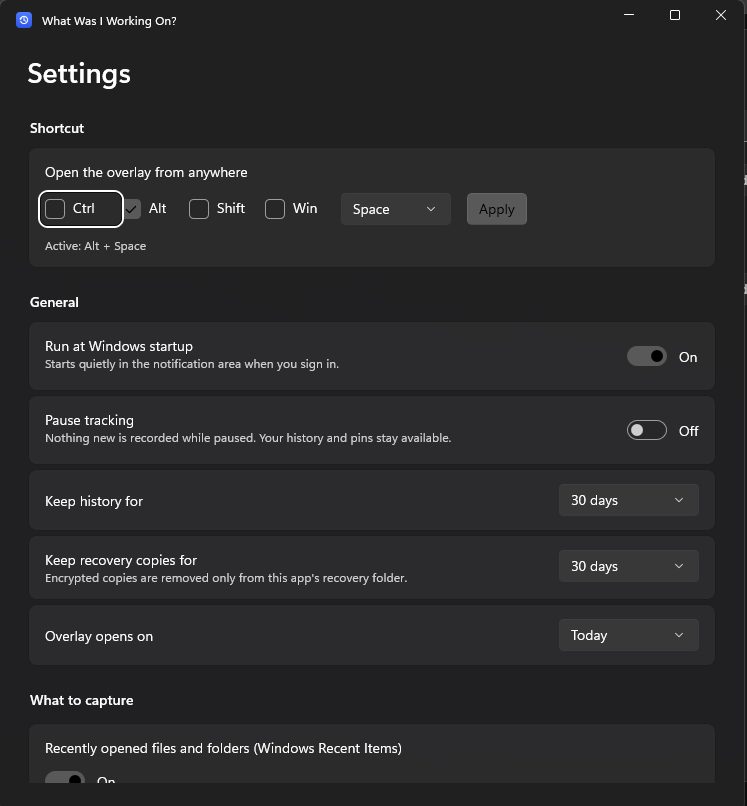
Adjust the global hotkey, pause recording new activity, and choose how long the app keeps its own history.
Explore the appBEFORE YOU INSTALL
Check File Explorer Home or the app’s own Recent list. For a combined searchable view, What Was I Working On? uses supported Windows recent-activity sources and opens with Alt + Space. It does not guarantee every app or file will appear.
No. The app stores its own history locally in encrypted storage. It does not upload file history, require an account, or use cloud sync for its core features.
Windows 10 version 1809 or later and Windows 11, on x64 and ARM64 PCs. The optional Widgets integration requires Windows 11.
No. The optional scan looks for candidates in known locations for supported applications. It cannot recover data that was never saved and cannot guarantee a candidate is complete or usable.
MORE WINDOWS HOW-TOS
Start with Windows’ built-in options, then learn about privacy and recovery.
MAKE “WHERE DID I SAVE THAT?” A QUICKER QUESTION
Bring recent files and folders back within easy reach.
Find it in Microsoft Store Windows 10 1809 or later and Windows 11 · x64 and ARM64